

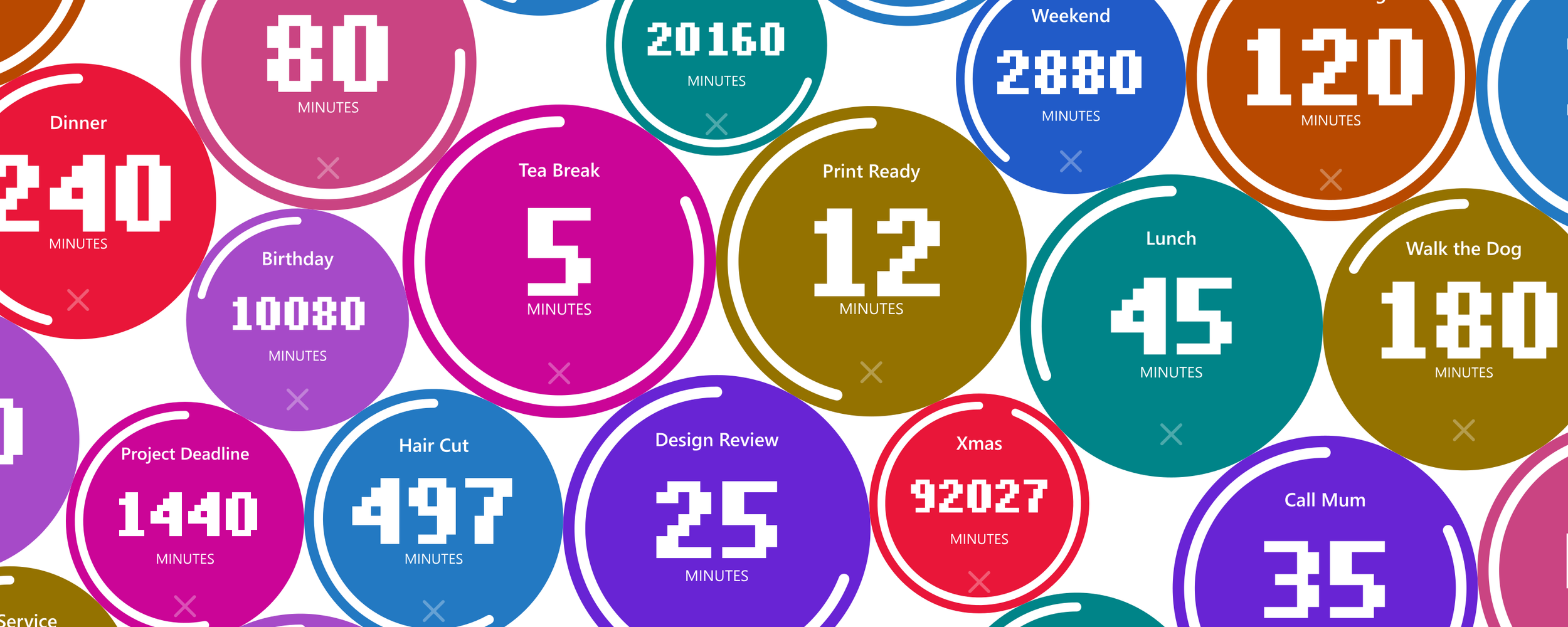
Cluster Countdown
A desktop widget
Digital Project | 2026
AI is integrating into my design process for physical products, but also helping me bring digital ideas to life without the coding skills or budget I once needed.
Cluster Countdown is the first of my “vibe coded” projects, a simple Windows countdown widget I built to support how I work.
Whether it’s a Teams meeting I’ve forgotten about, a prototype finishing on the 3D printer, or a five-minute tea break, I wanted something I could glance at without it demanding my attention. Nothing I tried quite suited me, so I made my own.
Names, colours and different sizes help me see what’s coming up next. When the screen gets busy, I can click and shake one countdown to gather them into a cluster and move them together.
My favourite detail? It counts in minutes. Days and hours feel distracting to me, minutes give me enough information without constantly drawing my eye. It only switches to seconds for the final minute.
If you fancy trying it, it’s free to download for Windows PCs. If there’s enough interest, I’ll look into a Mac version.
Give it a name
Waiting on a 3D print to finish, a meeting you can’t miss, or time for a break. Click the name and type your own, so you can tell at a glance what each countdown is keeping track of.
Start with a few minutes
For something happening soon, choose the hourglass and enter the number of minutes. A quick way to set aside time for a task or keep an eye on something already under way.
Or pick a date and time
For something further ahead, choose the calendar and set a date and time. Your countdown works out how many minutes are left until then.
Make it your colour
Open the colour control and drag around the slider. Give each countdown a colour that helps you recognise it, or simply pick one you like.
Put it where it suits you
Click and drag a countdown to move it around your screen. Keep it close to what you're working on, or tuck it somewhere out of the way.
Keep a few things in view
Set up separate countdowns for the things you have coming up. Each has its own name, colour and time, so a meeting and a print finishing can sit alongside each other.
Give it a little shake
Click and hold a countdown, then give it a shake. The others gather around it and stick together, making the whole lot easier to move.
Move them as one
Keep the mouse button held down after gathering your countdowns. Drag the cluster to move them all together and clear a little space on your screen.
Let go to separate
Release the mouse button and the countdowns become independent again. Move one on its own whenever you need to rearrange things.
See what's coming up first
The countdown due soonest is the biggest; the one furthest away is the smallest. Their relative sizes give you a quick sense of what needs your attention next.
Watch the final seconds
In the final minute, the display switches to seconds and counts down towards zero. You can keep an eye on the finish without doing the maths yourself.
A small nudge when time is up
When a countdown reaches zero, it plays a short tune and flashes. The tune stops, but the countdown keeps flashing until you remove it. This website demo is silent.
Clear it when you're done
Click the small cross and confirm to remove a countdown. The others stay in place, ready for whatever is coming up next.